Use Desktop after Course Finishes
A handy capability within DaDesktop is that participants can carry on using their course machine for further practice once training wraps up. Before the course concludes, participants receive an email asking whether they'd like continued access to their desktop environment after the session has ended.
Normally, each participant's course desktop is taken down shortly after the course finishes. If you'd prefer to keep your desktop to practise the lab work, you have the option to clone your course desktop into a 'Standalone Desktop' for ongoing use.
Simply head to your Course and your Desktop machine, then click the 'Use desktop after course' button beside your machine.
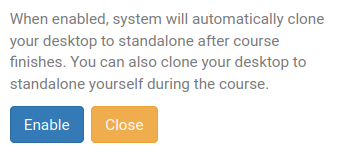
At that point, DaDesktop walks you through the straightforward procedure and lets you 'Enable' this feature.
After it's been enabled, you'll spot the following indicator next to your course machine

To get into your Standalone machine once the course is done, click on the Standalones menu at the top of your screen.
Machines that sit idle for a month will be removed, but a warning email is sent out well beforehand to give users plenty of notice if they'd like to keep using any of their Standalone machines.
Kindly have a look at this page for details on managing the retention of your Standalone machine.