Schedule or Un-schedule Deletion of a Standalone Machine
Why mind the deletion schedule?
If you’re carrying on with a previous lab from a course you took, or if you’re a trainer setting up course material, there’s no need to fret.
However, to make better use of system resources, standalone machines that sit idle for more than a month will be marked for automatic deletion—and we’ll give you a heads-up 7 days before it happens.
You can also cancel a scheduled deletion anytime.
How to schedule deleting a standalone machine yourself
- While spinning up a standalone desktop, you can choose a deletion date
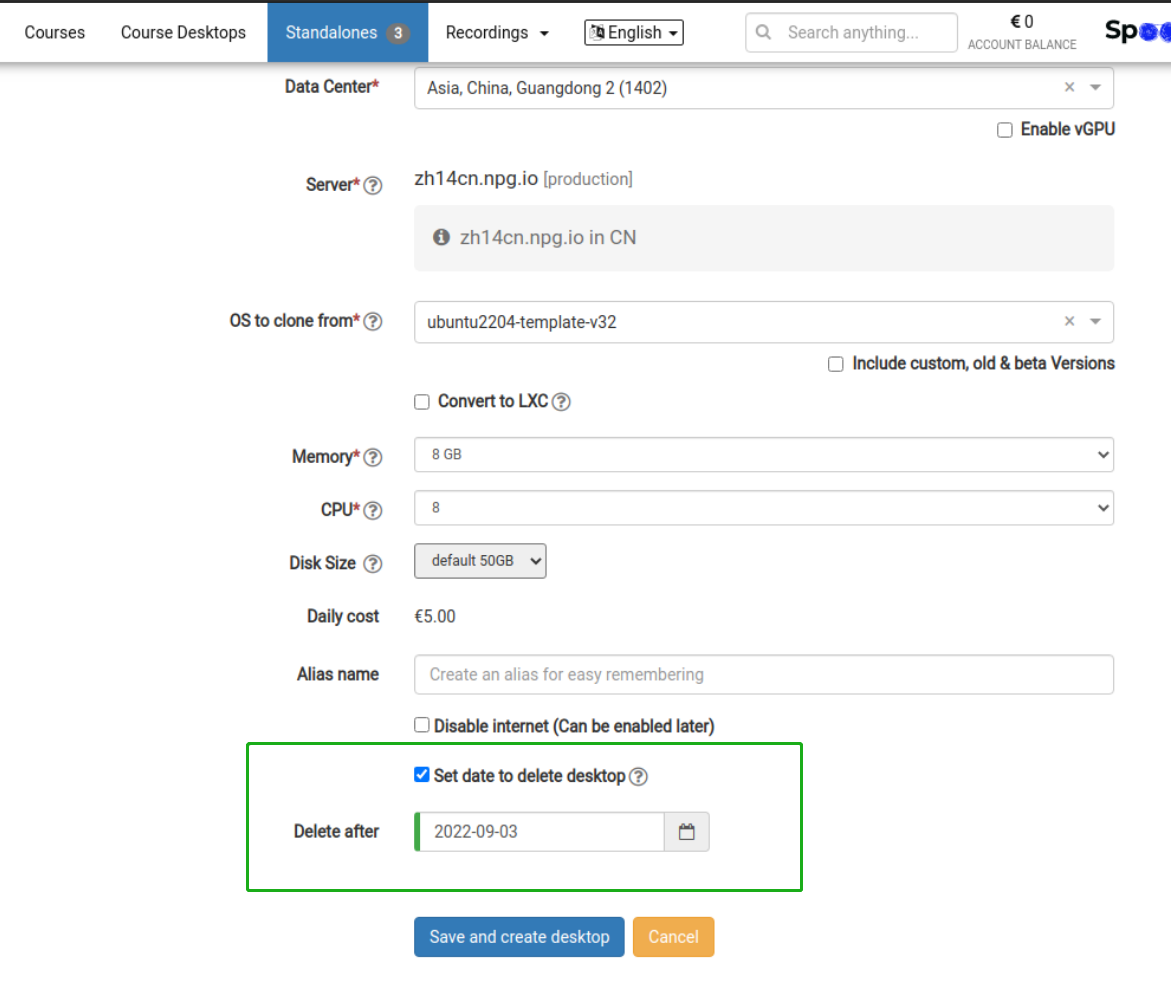
-
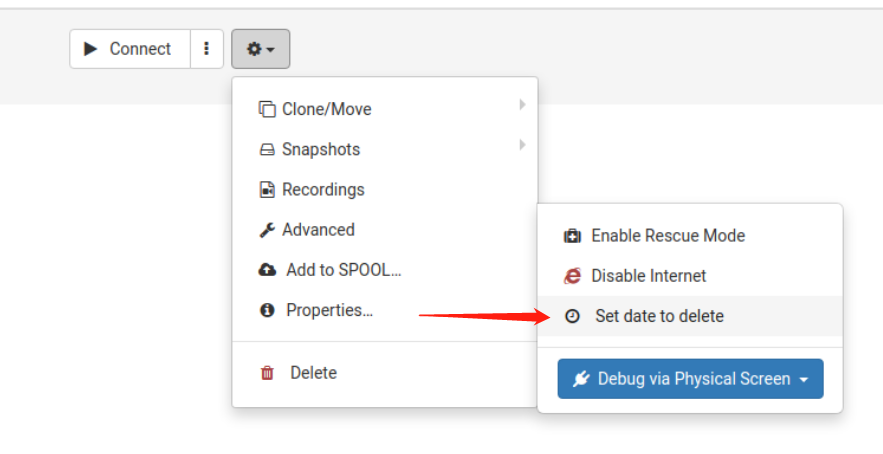
Set a deletion date via the Options menu
How to clear a scheduled deletion date
1. In the Options menu, select "Scheduled to delete on"
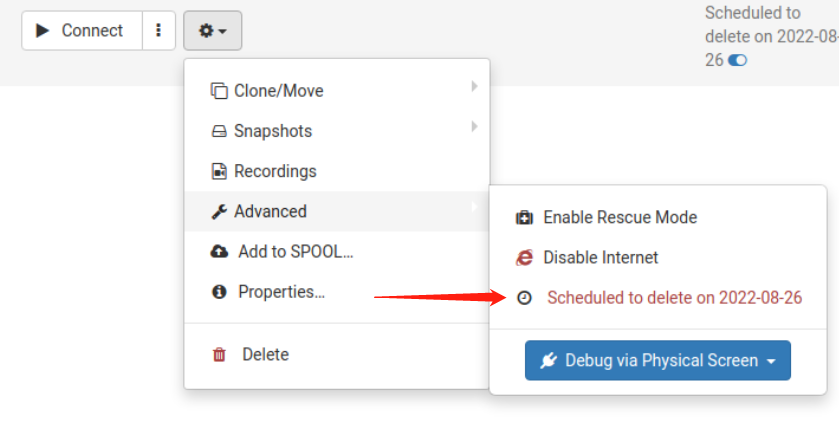
2. Hover over and click the blue toggle icon to quickly wipe the deletion date
