Copying files from host machine to inside DaDesktop machine
A feature that's been frequently requested is the ability to copy files from a trainer's own laptop or desktop into the DaDesktop machine. These files could be presentations, install ISOs for use in a nested virtualization system that allows multiple servers and desktops to be run, or just general files needed for a specific training application.
The team has introduced a new, easy-to-use file transfer feature in our latest Windows 10 and most Linux templates. It lets you simply drag and drop files from the host machine (i.e., your own laptop or desktop) to the DaDesktop machine.
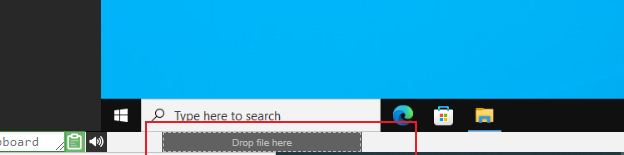
Right now, file transfer is limited to one file at a time. If you need to copy multiple files, you can create a zip archive and drag and drop that over as well. The file transfer uses chunking to send large files efficiently, and it works best with a fast fibre internet connection. Any folders inside the archive (e.g., a zip file) are preserved.
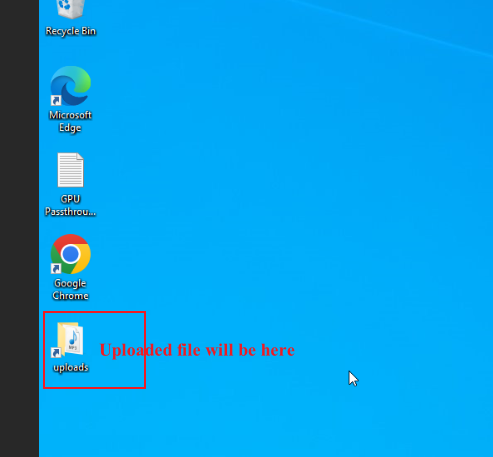
For the Linux templates, we don't yet have a desktop shortcut to the Uploads folder like Windows does. Instead, the files are located in:
/home/student/uploads-to-dadesktop
To summarize:
OS Templates that currently have this feature enabled
- Debian 12 - v20240314 and newer
- Ubuntu 22.04 - v20240314 and newer
- Ubuntu 24.04 - v20240314 and newer
- Windows 10 - v67 and newer
OS Templates that do not have this feature enabled (as yet)
- Debian 11
- Almalinux
- Kali-linux
- Any older versions of the templates
Please note that further enhancements to this early-release feature will be added soon.
If you have any feedback, feel free to contact us via the DaDesktop Technical Support chat.